Open the scheduled post
In Calendar → Content Pipeline, find the Scheduled card and select Edit (pencil). Edit scheduled post opens with the current image, caption, and selected time.
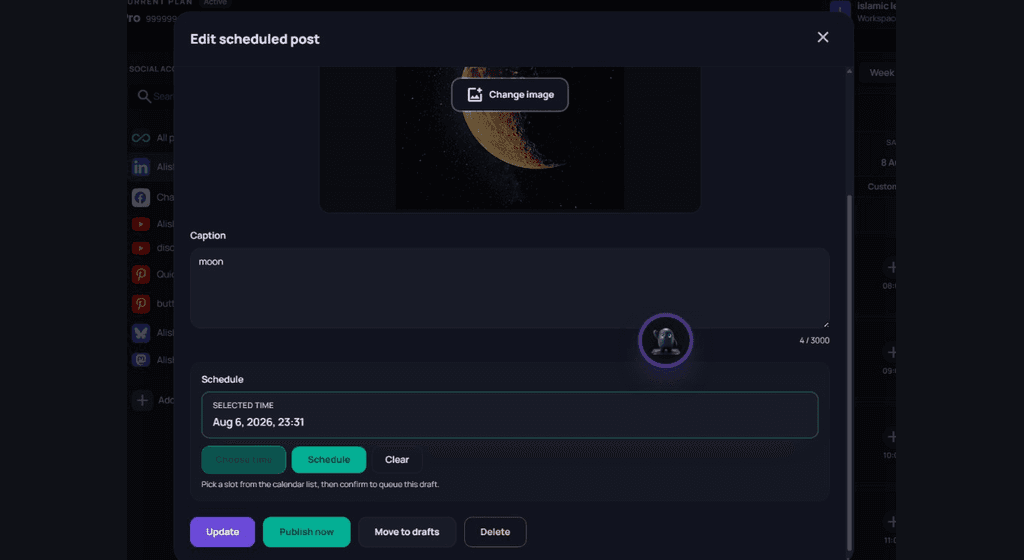
Change copy or media
- Edit the Caption field (limits still apply).
- Use Change image to replace attached media.
- Confirm you are editing the correct workspace item before saving.
Reschedule the time
Selected time shows the current slot. Select Choose time to open Pick a time again, pick a new list slot or custom date & time, then confirm. Use Clear if you want to remove the schedule before re-picking.
After you pick a new slot, select Update (or Schedule in the time section) so the pipeline stores the new time — changing the picker alone is not enough.
Update, publish now, or remove
- Update — save caption, media, and schedule changes.
- Publish now — send immediately instead of waiting for the slot.
- Move to drafts — keep the content without a publish time.
- Delete — remove the scheduled item from the queue.