What this guide covers
New Postsiva users usually follow three screens: Create account → Sign in → Verify your email. This guide walks through each step and what to do if the verification code is missing.
1. Sign up (Create account)
Open Sign up and create your Postsiva account with email, or continue with a supported social option such as Facebook or TikTok.
- 1
Open Create account
Go to Sign up from the marketing site or the “Create an account” link on the login page.
- 2
Enter your details
Add your first name, email, and password. Workspace name is optional at signup — you can finish workspace setup afterward.
- 3
Agree and create
Accept the Terms of Service and Privacy Policy, then select Create account.
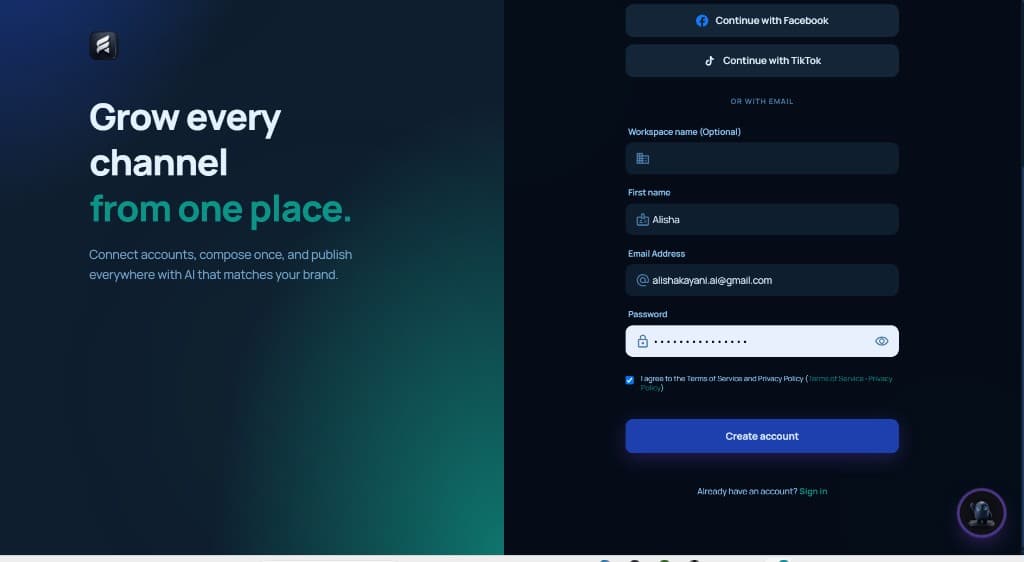
After signup, Postsiva may ask you to verify your email before you can use the full workspace.
2. Log in (Sign in)
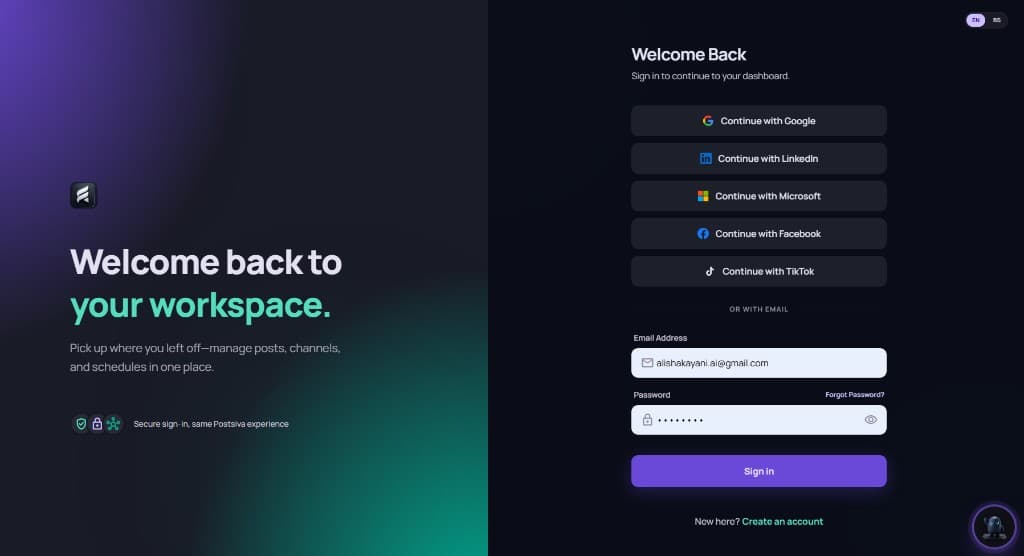
If you already have an account, use Sign in. You can continue with Google, LinkedIn, Microsoft, Facebook, TikTok, or email and password.
- 1
Open Sign in
Go to the login page and choose a social provider or enter the email and password you used at signup.
- 2
Forgot password
Use Forgot Password? if you cannot remember your password. Complete that flow, then return to Sign in.
3. Verify your email (6-digit code)
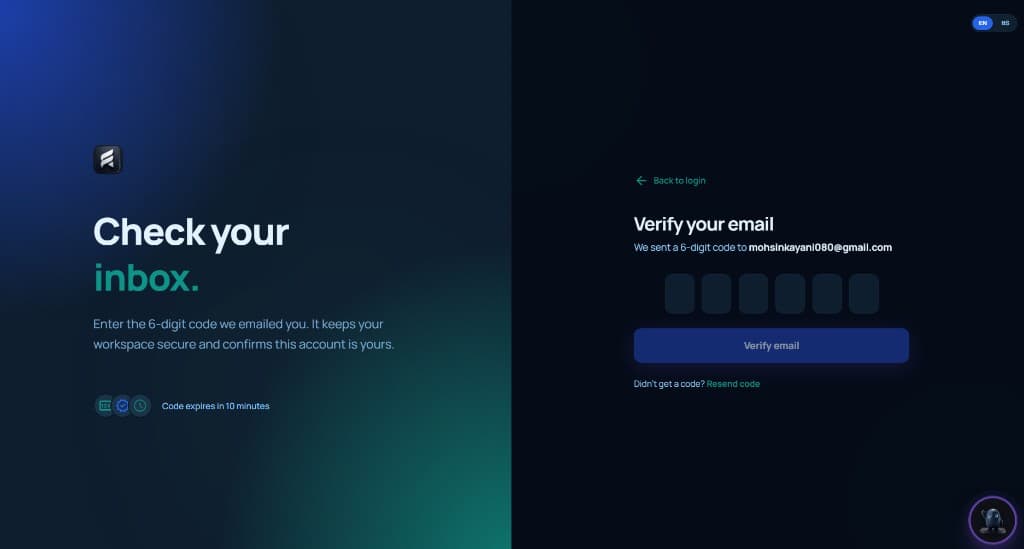
Postsiva emails a 6-digit code to confirm the address belongs to you. Enter the code on the Verify your email screen. Codes typically expire in about 10 minutes.
- 1
Open your inbox
Look for an email from Postsiva with the verification code. Use the same address you entered at signup or login.
- 2
Enter the code
Type the 6 digits into the boxes on the Verify your email screen, then select Verify email.
- 3
Resend if needed
If nothing arrives, use Resend code on the verify screen, wait a minute, and check again.
Check spam / junk if you do not get the code
Verification emails sometimes land in Spam, Junk, Promotions, or Updates instead of Primary.
- Search your mailbox for “Postsiva” or “verification”.
- Open Spam / Junk and mark the Postsiva message as Not spam so future codes arrive in your inbox.
- Confirm you typed the correct email on signup or login.
- Wait a minute, then use Resend code and check spam again.
- If your company filters mail, ask IT to allow Postsiva emails, or try a personal inbox.
Still stuck after checking spam and resending? Contact support from the Help Center and include the email address you used.