Before you begin
- Connect from the workspace where the Facebook page should live.
- Use the Meta identity that has page admin rights for publishing.
- Know which Page you want if you manage more than one.
1. Start Facebook connect
Open Connect your world and select Connect on Facebook. The card shows Connecting… while the Facebook Login for Business window opens.
2. Review access and save
On Review access, confirm the Page selected and the permissions Postsiva_posts needs (create content, manage comments, read Page content, and list Pages you manage). Select Save to continue.
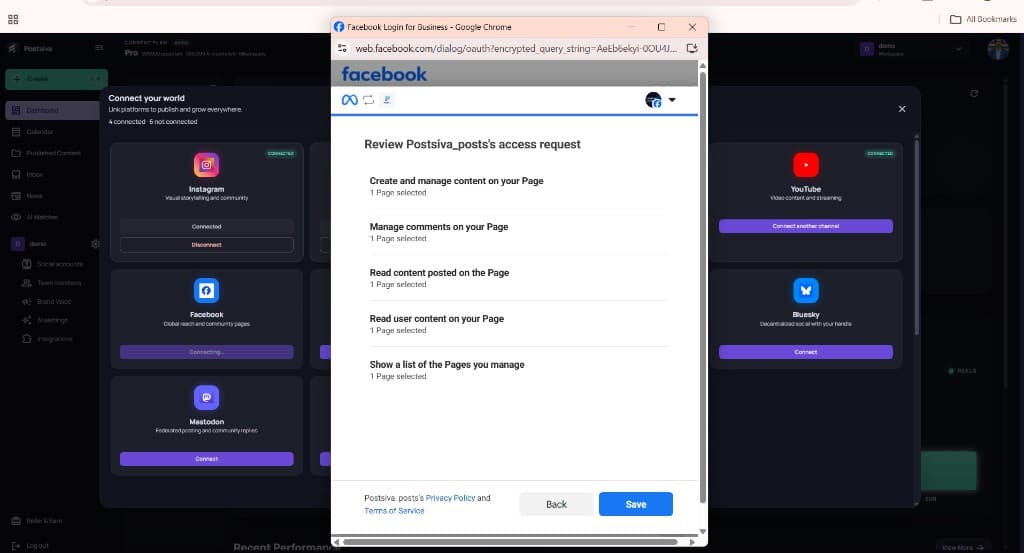
If the wrong Page is selected, go Back and choose the correct Page before saving.
3. Confirm Facebook is connected
When the popup closes, Facebook should show Connected in Connect your world. Open Social accounts anytime to disconnect or add more platforms.
What usually goes wrong
- Logging into the wrong Meta identity.
- Having profile access but not page publishing rights.
- Selecting the wrong page when several businesses are attached.